
Text Recognition Jobs
Text Recognition Jobs are the unified way of acquiring text from various file types:
- For page based documents or image files this is achieved by optical character recognition (OCR).
- For video and audio files this is achieved by sound recognition and speech transcription.
The typical usage scenario are documents which have a low amount of extracted text or no text at all. Additionally there might be certain file types that are known to have to unreliable or incomplete extracted text and Text Recognition can help to fill these gaps.
Create Text Recognition Job
Section titled “Create Text Recognition Job”Prerequisites
Section titled “Prerequisites”- Create a Saved Query first to define the Document set to be analyzed.
- Create a target Field of type text to receive the results.
Create Text Recognition Job
Section titled “Create Text Recognition Job”- On the Text Recognition Jobs tab, click the button NEW TEXT RECOGNITION JOB in the top right corner.

- The Layout for Text Recognition Job creation is opened:
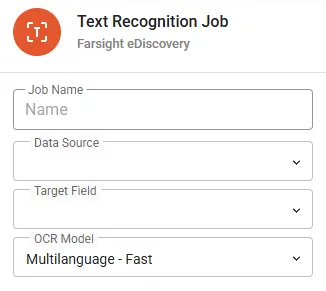
- See the table below for details on the requested inputs:
| Input | Description |
|---|---|
| Job Name | Choose a meaningful name for the job. |
| Data Source | Select the Saved Query containing your Documents to be analyzed. The search can contained mixed document set e.g. paged based and audio / video files and they are automatically passed to the appropriate engine. |
| Target Field | Recognition results are stored in a designated Field of type text. Any existing content within the target Field is overwritten. |
| OCR Model | Multilanguage provides a good baseline for most languages and mixed language documents. Forcing a specific charset can help to increase accuracy or fix poor coverage with certain languages. |
- Press the button SAVE to complete the creation process.
- Finally execute the job by pressing the button RUN.
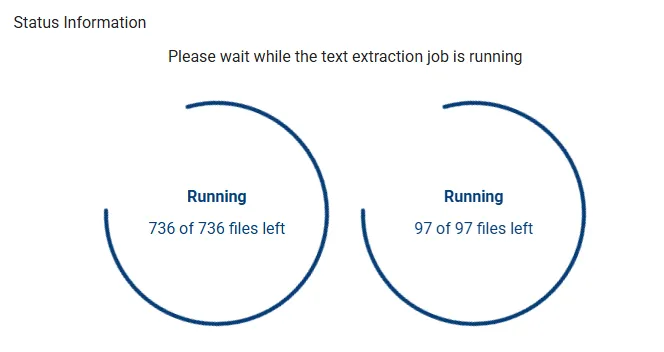
- Progress will be shown in two different queues for OCR and transcription.
Manage Text Recognition Job
Section titled “Manage Text Recognition Job”The following attributes are presented by the default view:
- Name shows the name of the job.
- Data Source is the Saved Query associated with the job.
- Target Field will receive the results and needs to be of type text.
- OCR Model displays the selected recognition model.
- Status would indicate any ongoing process.
- Last Started shows the beginning of the last run.
- Last Finished shows the end of the last run.
Actions
Section titled “Actions”- Edit shows the details of the Text Recognition Job and is open to modifications.
- Delete will permanently remove the Text Recognition Job.
Details
Section titled “Details”Follow the link on the Name column to see the details.
Status
Section titled “Status”Status information will instruct on further actions to be taken or display information about the previously completed run.
Console
Section titled “Console”Console section offers the following controls: 
- Run will start job execution or re-run existing jobs to update results.
- Cancel is only available during an active recognition job execution.