
Search Term Reports
Search Term Reports are a convenient way to run multiple keywords against selected Documents. Additionally they offer the following benefits:
- Tagging of identified Documents with the corresponding keywords. These tags can be used for narrowing down the Document set with conditional search.
- Highlight the identified keywords in the Document Viewer and navigate between findings.
- Report Document counts with single keyword hits (unique hits) along the set and Document counts when including relational groups e.g. families or binary duplicates.
How to create a Search Term Report
Section titled “How to create a Search Term Report”Prerequisites
Section titled “Prerequisites”-
Make sure you have previously created a Search Index as described in section Search Indices.
-
Create a Saved Query first to define the Document set to be searched.
Create Search Term Report
Section titled “Create Search Term Report”Before continuing please be aware that the report would need to be re-run when changing any configuration options unless stated differently below.
- Press the button New Search Term Report to open the Search Term Report dialog.
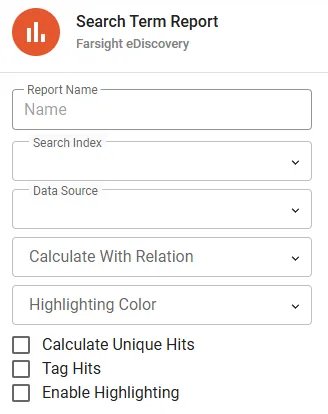
- See table below for details on the requested inputs:
| Input | Description |
|---|---|
| Report Name | Choose a meaningful name for the report. |
| Search Index | Select the Search Index to be queried. |
| Data Source | Select the Saved Query containing your Documents to be searched. Make sure the Documents were included at time of the build process. Any Documents which did not take part in the indexing process earlier on cannot be searched and are discarded without further warning. |
| Calculate With Relation | Select a relational group e.g. families for receiving expanded Document count. Please note that the Saved Query under Data Source is still the limiting factor regarding Document scope. Any related Documents outside of the defined search are omitted for this reporting which means the relational count of the report can be lower than expected. |
| Highlight Color | This is only relevant in conjunction with the option Enable Highlighting which is described below. This option can be toggled later on without need for re-running the report. |
- The following optional features can enabled by checkboxes:
| Input | Description |
|---|---|
| Calculate Unique Hits | The number of Documents with unique hits are reported for each keyword. Such Documents are solely pulled into the result set because of hits for that specific keyword and no other keywords have been found along the Document. |
| Tag Hits | Enabling this feature will automatically generate a new Field on Documents to tag identified Documents with their corresponding keyword. The field will be named with prefix STR - followed by the name of the Search Term Report. If unique hits have been calculated then there will be a separate Field to tag these Documents as well. The Field name will follow the previously described pattern plus suffix Unique. |
| Enable Highlighting | Enable this option to make Highlights available in Document Viewer. This option can be toggled later on without need for re-running the report. |
- Press the button SAVE to complete the creation process.
- In a next step add terms by using the button ADD TERMS.
- Finally execute the report by pressing the button RUN TERMS.
Manage Search Term Report
Section titled “Manage Search Term Report”The following attributes are presented by the default View:
- Name shows the name of the Search Term Report.
- Calculate Unique shows Yes if unique hit calculation is enabled.
- Tag shows Yes if Document tagging is enabled.
- Include Relation shows the relational Field name if that function is enabled.
Actions
Section titled “Actions”- Edit to change the name or the properties of the Search Term Report.
- Delete to permanently remove the Search Term Report and all associated Fields.
Details
Section titled “Details”Follow the link on the Name column to see the details.
Status
Section titled “Status”Status information will instruct on further actions to be taken or display information about the previously completed run.
Console
Section titled “Console”Console section offers the following controls: 
- Run Terms will start report execution or re-run existing report to update results.
- Cancel Run is only available during an active report execution.
- Download Report will become available once the report has been executed.
Add Terms
Section titled “Add Terms”- Press the button ADD TERMS to open the Add Terms dialog.

- Enter the terms line by line or paste any previously prepared list.
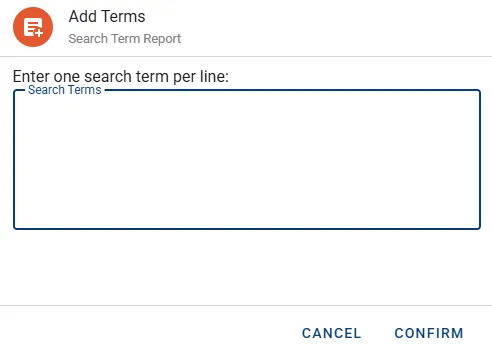
- Press the button CONFIRM to submit the terms and close the dialog.
- Status Information will now display a hint that there are pending terms.

- Press the button RUN TERMS to re-run the report.