
Layouts
Generally speaking Layouts are user managed forms used to edit records. A more specific example would be a Layout for Document records used by reviewers to rate the relevance. Each Layout does define a set of presented Fields and is controlling permissible modifications.
Basic example Layout for performing Document review: 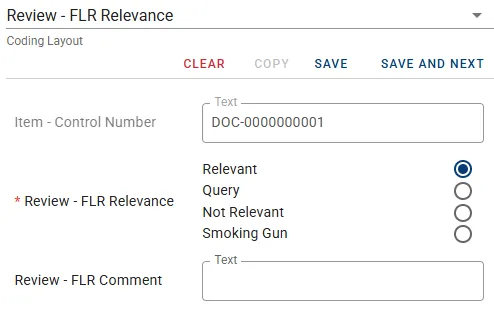
Create Layout
Section titled “Create Layout”-
In the tab Layouts click the button NEW LAYOUT in the top right corner.

-
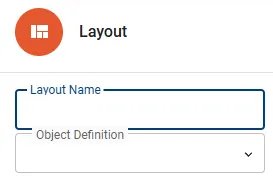
Define the Layout Name and select the Object Definition in scope from the drop-down menu.
-
Select the Fields to be displayed by the Layout using one of the following methods:
- Instantly move designated Fields by double-click.
- Mark the designated Fields and use the arrow buttons located between the list of Available Fields and Selected Fields.
-
By default all Fields will be added as read-only and optional. Toggle the modification controls in the list of Selected Fields to match your use case for the Layout.
| Symbol | Description |
|---|---|
 | The Field is presented in read-only mode. |
 | The Field is presented in writable mode. |
 | The input for this Field is optional. |
 | The input for this Field is mandatory. |
- Press the button SAVE to complete the creation process.
Manage Layout
Section titled “Manage Layout”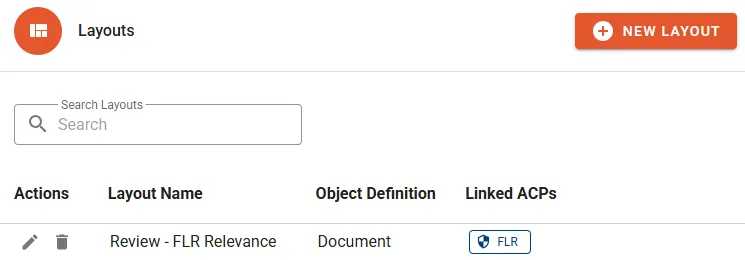
The following properties will be displayed in the Layout list:
- Layout Name
- Object Definition shows the object type this Layout has been defined for.
- Linked ACPs shows the associated Access Control Planes.
Actions
Section titled “Actions”- Edit to change the name of the Layout or alter any properties.
- Delete will permanently remove the Layout.