
Auth Providers
Authentication Providers are used to verify user credentials:
- Password is the pre-defined default.
- Additional OpenID based identity services can be registered.
Create Auth Provider
Section titled “Create Auth Provider”- Navigate to the Auth Providers tab and press the button CREATE PROVIDER in the top right corner.
- This will open the Create Provider dialog:
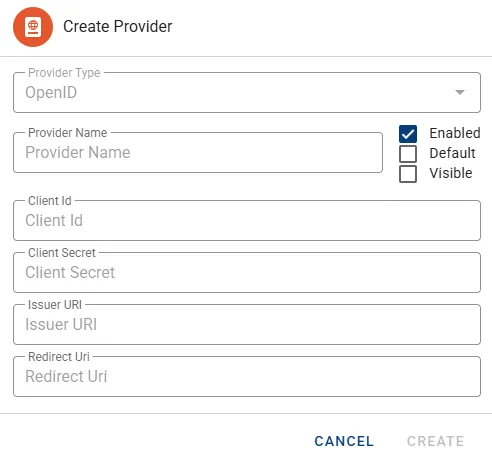
- Provider Type is locked to OpenID as this is the only type available.
- Provider Name is the display name of the provider or service. Please note this will be define the text of the corresponding button on the login page.
- Set checkboxes Enabled/Default accordingly.
- Selecting the option Visible will add the button for this Auth Provider to the login landing page. This can save an extra click as the login options are normally shown once the email address was submitted.
- Client Id is the application identifier which has been registered for Farsight with the Provider.
- Client Secret is the private credential assigned to above identifier.
- Issuer URI is the unique address assigned by the identity provider.
- Redirect URI refers to the base URL of this Farsight instance followed by /api/oidc/callback.
- Press the button CREATE to complete the dialog.
The new Auth Provider will appear in the list with no Users assigned. See the next section on how to take care of the User assignments.
Manage Auth Providers
Section titled “Manage Auth Providers”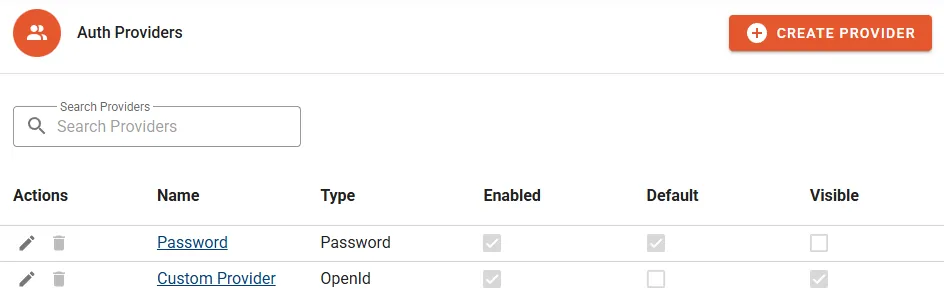
The following properties will be displayed in the Auth Provider list:
- Name of the Auth Provider.
- Type of the Auth Provider.
- Enabled at instance level (multiple possible).
- Default at instance level (only one).
- Visible on the login page (multiple possible).
Actions
Section titled “Actions”- Edit can be used to update the properties of the Auth Provider.
- Delete to permanently remove the Auth Provider.
- Manage Users
Details
Section titled “Details”Assigned Users
Section titled “Assigned Users”The Assigned Users tab lets you manage assigned Users.
- Click the button MANAGE USERS to configure assignments.
- Change Auth Provider memberships by selecting/unselecting designated Users.
- Click the button CONFIRM to complete the change.