
Production Groups
Productions are used to deliver records to other parties in a legally compliant format. They are a great help to keep track of produced material and ensure the resulting Export is compliant to agreed protocols.
In Farsight, Production Groups are the overarching objects receiving all the settings and Productions are distinct sets of records sent through the process.
Create Production Group
Section titled “Create Production Group”-
In the tab Production Groups click the button NEW PRODUCTION GROUP in the top right corner.

-
The Production Group dialog is opening with the following sub tabs.

Basic Settings & Numbering
Section titled “Basic Settings & Numbering”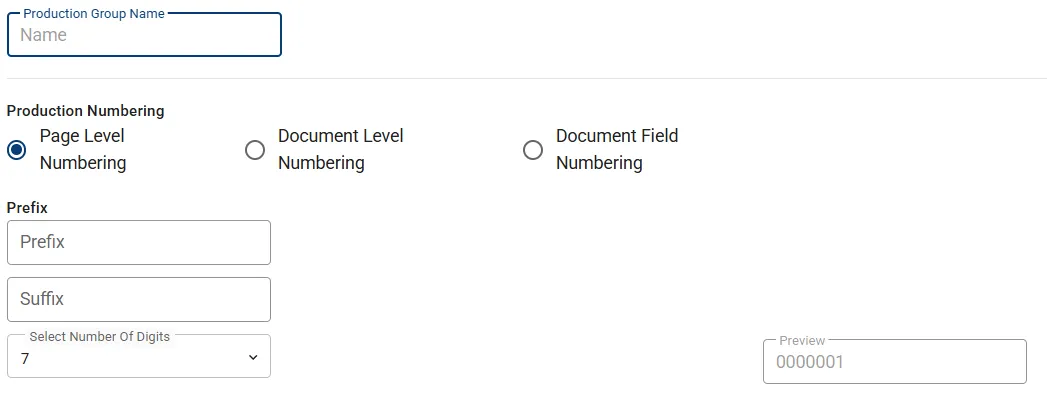
-
Define a name in Production Group Name input Field.
-
Choose the approach for Production Numbering:
-
Page Level Numbering will generate a unique sequential number for each page.
-
Document Level Numbering will generate a unique number for each Document. Selecting this mode will show an additional option Include Page Numbers which can be used to append the page number.

-
Document Field Numbering does also work at Document level but one can select an existing numbering stored in a text Field. The drop-down menu Select Number Of Digits is exchanged with Field Selection. This mode can also be combined with the Include Page Numbers option.
-
-
Define Prefix and/or Suffix for the numbering.
-
As a last step and depending on the numbering schema different drop-down menus are presented:
-
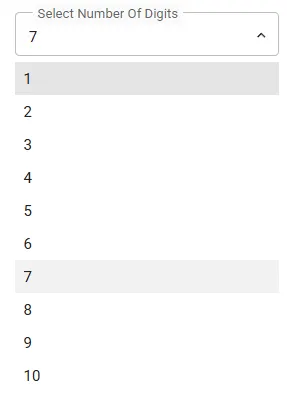
Select Number Of Digits when working with Page Level Numbering or Document Level Numbering.
-
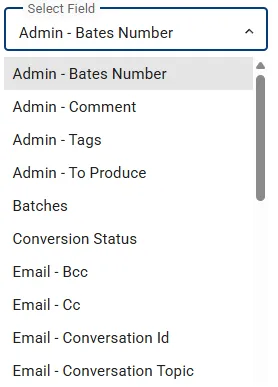
Select the text Field containing the designated numbers when working with Document Field Numbering.
-
-
Check the Preview Field for an example. The parameters for this example are explained below.
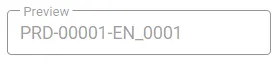
- Production Numbering: Document Level Numbering
- Include Page Numbers: Enabled
- Prefix: PRD-
- Suffix: -EN
- Select Number of Digits: 5
Branding
Section titled “Branding”Both header and footer have three areas to apply stamps.

- Bates Number will include the previously defined bates number.
- Field will display another drop-down menu for Field selection.
- Text will display a free text input box.
Scope and Content
Section titled “Scope and Content”
-
The selected Saved Query Documents ready for production is the main scope for the Production and is ultimately limiting the Document universe available for the Production.
-
Markup Set is to be configured if image based Output Groups should receive Redactions.
-
Add Output Group does add another line where the Documents of a Saved Query can be assigned to a preferred output format. The first group of occurrence takes precedence in case of a Document being part of multiple groups. Documents which are part of the Saved Query in Filter but not being part of the main Production scope are ignored.
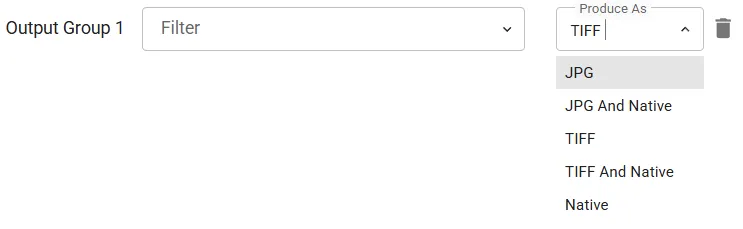 Any Saved Query for Filter remains optional which is explained based on the example below: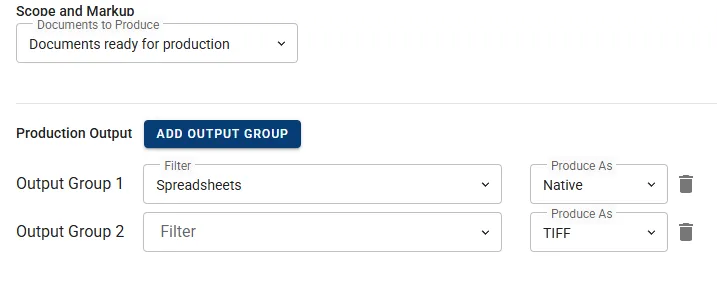
- Saved Query Documents ready for production is the main Production scope.
- Output Group 1 consists of results from Saved Query Spreadsheets and is configured for output as Native only.
- Output Group 2 does not have a filter which means all remaining Documents are produced in TIFF format.
-
Production Loadfile section is used to configure the designated Fields to become part of the output.
-
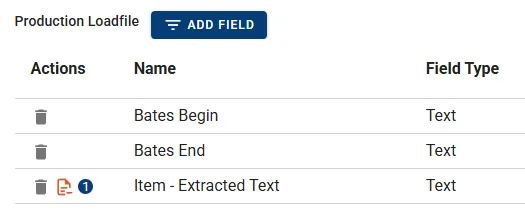
By default the Production numbering Bates Begin and Bates End will be part of the selection. Basically both can be removed however at least one other Field needs to remain present.
-
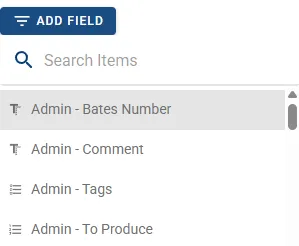
Press the button ADD FIELD to open a drop-down menu and select another Field to be included.
-
For text Fields an additional option Export to text file is offered. This option is intended for storing larger Field content like extracted text in separate files. If the option is enabled for multiple Fields then the content of the first non-blank Field is saved to the text file. The number next to the symbol is indicating the precedence.
-
-
Press the button SAVE to completed the creation process. All of the Production Group settings remain editable up until the first production is executed.
Manage Production Group
Section titled “Manage Production Group”The following attributes are presented by the default view:
- Name shows the name of the Production Group.
- Prefix of the Production numbering.
- Suffix of the Production numbering.
- Markup Set containing the Redactions to be applied to the images.
- Status would indicate any ongoing process.
- System Created At does show the creation timestamp.
Actions
Section titled “Actions”- Edit allows to see the Production Group details but all settings are read-only.
- Delete will permanently remove the Production Group and all associated Productions.
Details
Section titled “Details”Follow the link on the Name column to see the details.
Status
Section titled “Status”The Status page shows the following information:
- Produced Documents
- Ready To Produce Documents
- Native count
- TIFF
Console
Section titled “Console”Console section offers the following controls:

- Create Next Production will start the next Production run. The button is only available if additional Documents are ready. Once the first Production is executed all related settings will be frozen.
Manage Productions
Section titled “Manage Productions”- Production Name
- Bates Beg
- Bates End
- Started
- Finished
- Status
Actions
Section titled “Actions”Download Simple PDF
Section titled “Download Simple PDF”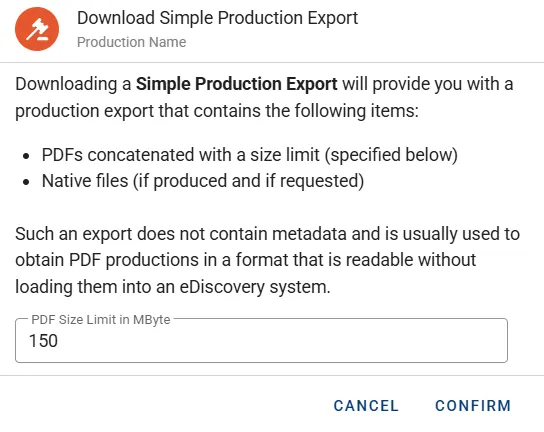
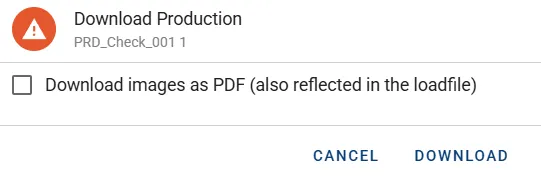
Download Full Production
Section titled “Download Full Production”This action will offer a ZIP file download containing the entire Production.
- Use the checkbox to receive PDFs for Output groups configured to TIFF or JPG.
Download Production Loadfile
Section titled “Download Production Loadfile”Download only the Loadfile in DAT format without any of the other files.
Delete Production
Section titled “Delete Production”Typically an existing Production is only removed for the purpose of re-running a Production.