
Access Controls
Access Control Planes (ACP) define permissions at the Workspace level.
Permissions are defined at Object Definition level and are customizable for the following elements:
- Views
- Layouts
- Viewers
Beside Object Definition based permissions there are supplemental rules for what can be done with the records.
- Abilities capture certain Actions that Users belonging to an ACP can take.
- Restrictions can limit User access to records by conditions based on object properties e.g. metadata or review coding.
Computed Fields does display the visibility and access level based on the decisions made for the previously introduced elements.
Create ACP
Section titled “Create ACP”-
On the tab Access Controls click the button NEW ACP in the top right corner.

-
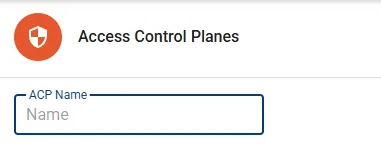
Assign the name in the ACP Name input box.
-
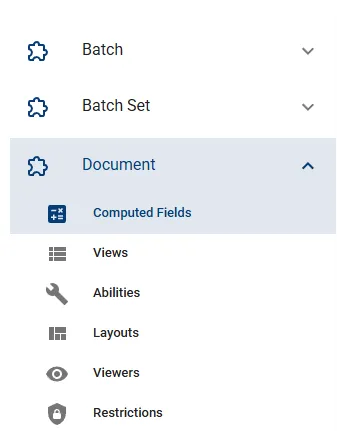
Go through the designated objects and sub tabs to define the individual permissions. All permission elements are explained below.
-
Press the button SAVE to complete the creation process.
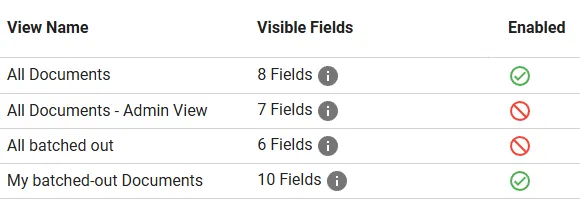
Views allow Users to browse records. Views will grant read-access to Fields presented via Selected Fields section.
-
Control access to Views by toggling the symbol in column Enabled.
-
Hover the information symbol to get a list of Fields displayed by the View.
Layouts
Section titled “Layouts”-
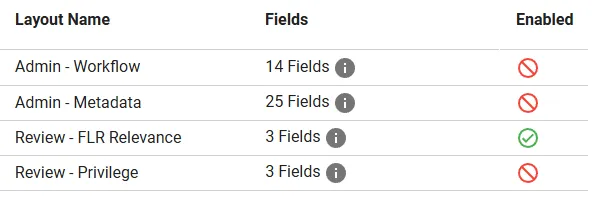
Control access to Layouts by toggling the symbol in column Enabled.
-
Hover the information symbol to get a list of Fields on the Layout and their state (visible / editable).
Abilities
Section titled “Abilities”While Abilities can vary by Object Definition, the four default Abilities Create, Delete, Mass Delete, and Mass Update exist for all regular types.
-
Control Ability by toggling the symbol in column Enabled.
-
Hover the information symbol to get details on Field access.
Listed Abilities vary based on the object type in focus. Below are two quite different sample sets for Abilities:
- Documents have an extensive list of Abilities.
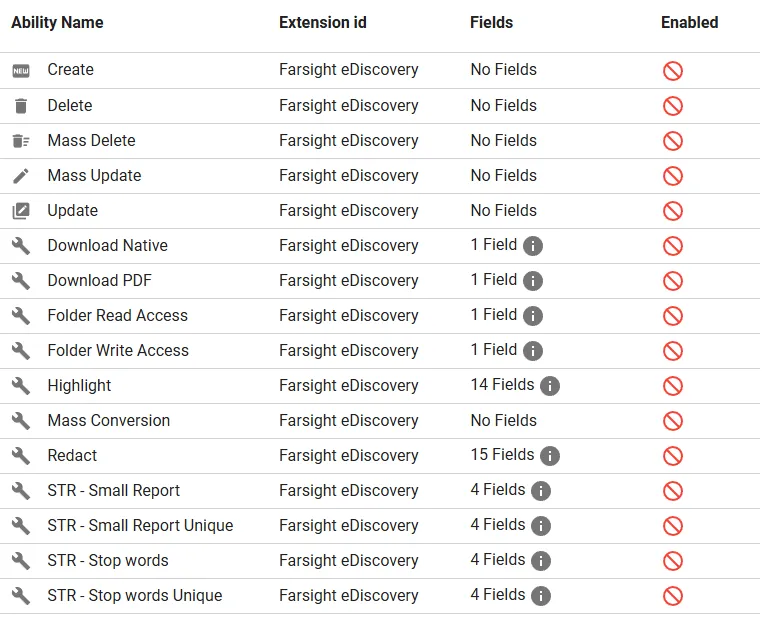
- Batches offer very basic Abilities.

Restrictions
Section titled “Restrictions”Restrictions can define filters which should be applied persistently. Basically to limit access to specific records or exclude specific records from being accessed. Building the conditions works the same way as with Views or Saved Queries.
Here is a practical example how restrictions can be useful for your workflow. In this scenario access for second level reviewers should be limited to Documents which previously passed first level review:
-
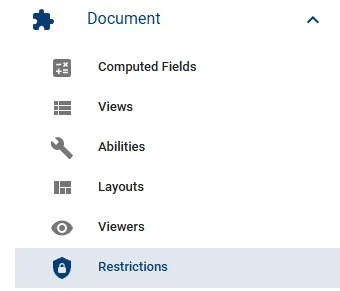
In the corresponding ACP go to the Document object and select Restrictions.
-
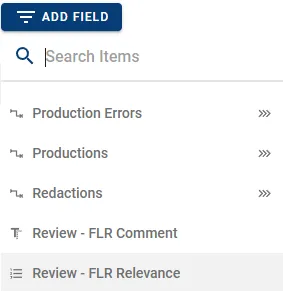
Click the button ADD FIELD and select the relevancy Field being used during first level review.
-
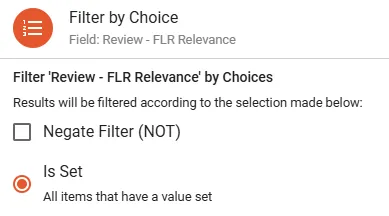
Define Is Set as condition.
-
Press the button SAVE in the top right corner to complete.
Manage ACP
Section titled “Manage ACP”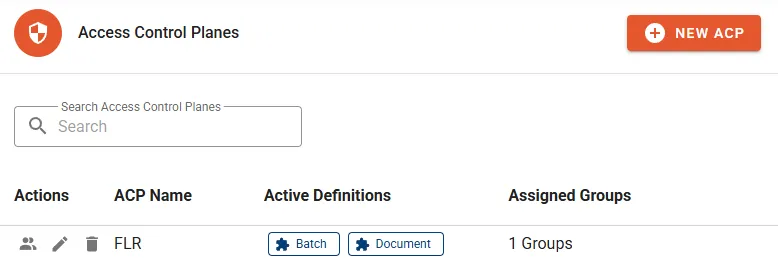
- ACP Name
- Active Definitions is listing Object Definitions receiving permissions from this ACP.
- Assigned Groups shows the count of assigned Groups.
Perform Actions
Section titled “Perform Actions”- Manage ACP Group Assignments to link or unlink Groups to the ACP.
- Edit to change name or properties of the ACP.
- Delete will permanently remove the ACP.