Object Features
Core features like Views or Layouts are the building blocks to interact with records based on Object Definitions. Although object based records are presented in a similar fashion by the user interface, these records offer additional management capabilities.
Customizable Views
Section titled “Customizable Views”Here is an example from visiting the Document tab introduced by the eDiscovery Extension: 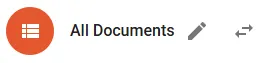
- The name of the View (All Documents) is displayed in the title bar.
- The active View can be opened for edit by clicking the pen symbol.
- Clicking the swap symbol does show a drop-down selection with all available Views for all Object Definitions.
Mass Actions
Section titled “Mass Actions”Based again on the example of the Documents tab: 
Action
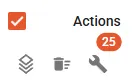
- The available Mass Actions are displayed in the header of the Actions column.
- Common Actions are displayed as symbol (Edit, Delete).
- Additional Actions can be accessed by the wrench symbol.
Scope
- By default the Mass Action will affect all records of the given Object Definition.

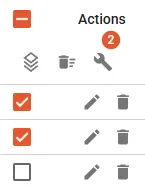
- Clicking the checkbox in the header will set the scope to records displayed by the current page. The corresponding record count is displayed in the orange ellipsis.
- Records can be individually selected/unselected by the checkbox in front of the record. The record count in the orange ellipsis is updated accordingly.
Column Filters
Section titled “Column Filters”The given Field type determines the applicable column filter and are rendered accordingly:
 | An empty input box for text Fields. |
 | A button labeled NO FILTER for any other Field types. |
Text Fields provide an input box to search patterns or phrases.
- No need to enter quotes or wildcards as your input will be treated as pattern and return partial matches.
- Operators are not supported and treated as regular words to be searched.
- Exact searches are not supported as input strings automatically receive wildcards at the begin and end.
Date / Date & Time
Section titled “Date / Date & Time”Fields of type Date / Date & Time present this dialog:
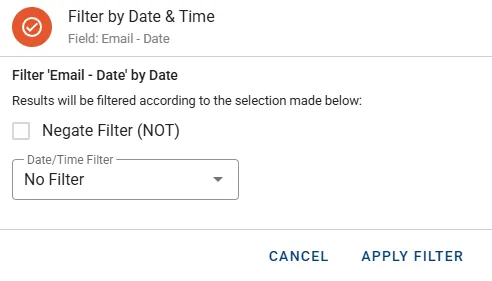
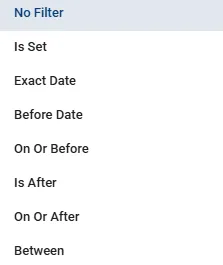
List of available filters:
Boolean
Section titled “Boolean”Fields of type Boolean present this dialog: 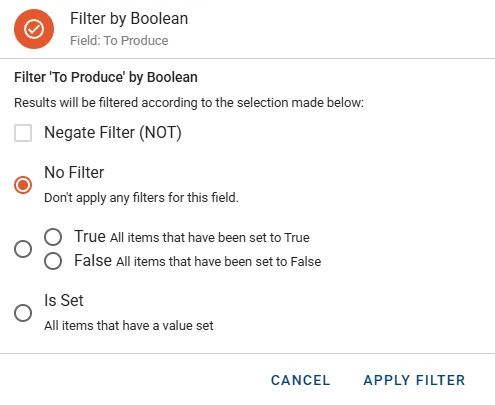
Decimal / Whole Number
Section titled “Decimal / Whole Number”Fields of type Decimal / Whole Number present this dialog: 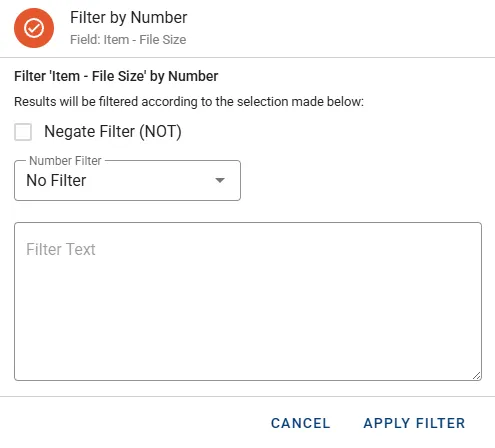
List of available filters: 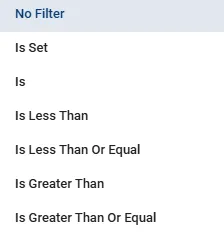
Choice
Section titled “Choice”Fields of type Choice present this dialog:
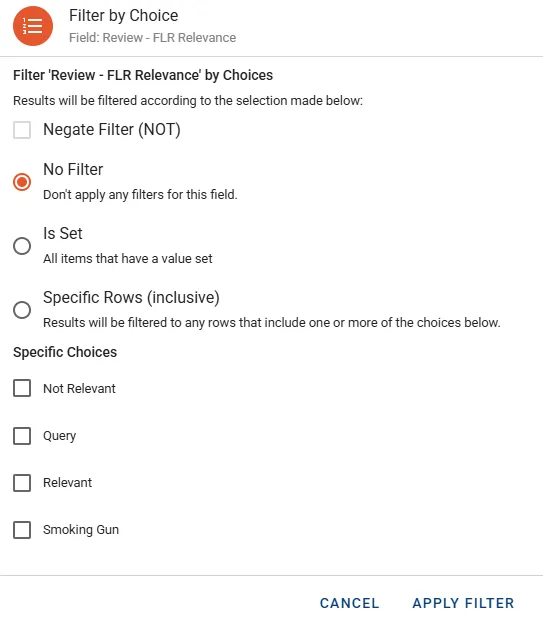
With many available choices the selection is performed on a separate menu: 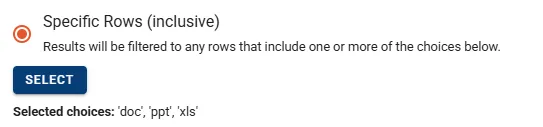
Multi-Choice
Section titled “Multi-Choice”Fields of type Multi-Choice present this dialog: 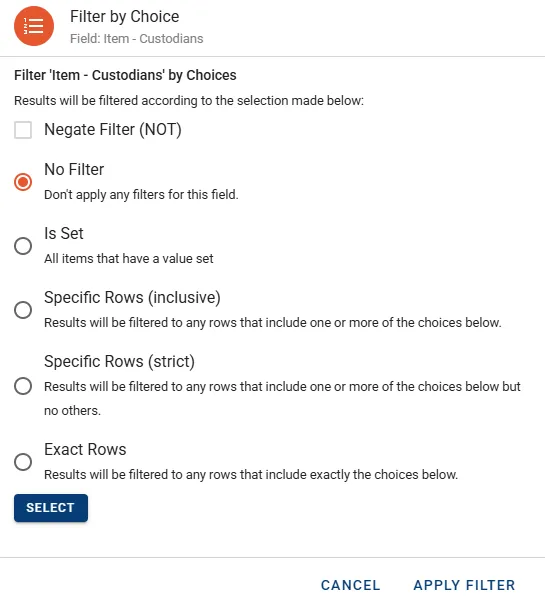
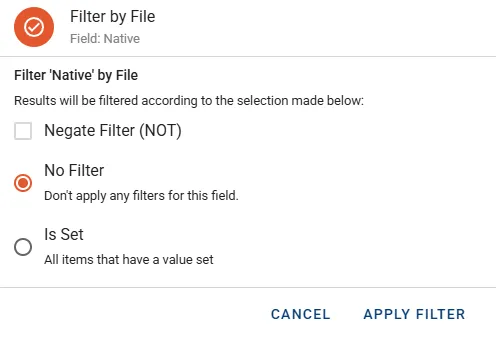
Fields of type File / Multi-File present this dialog: