
Batch Sets
Larger Document sets can be organized into smaller Batches for distribution of review work. These Batches are created by an administrator using a Batch Set. Based on the specified rules the Batches can be automatically rolled out and made available for review.
Create Batch Set
Section titled “Create Batch Set”-
In the tab Batch Set click on the button NEW BATCH SET in the top right corner.

-
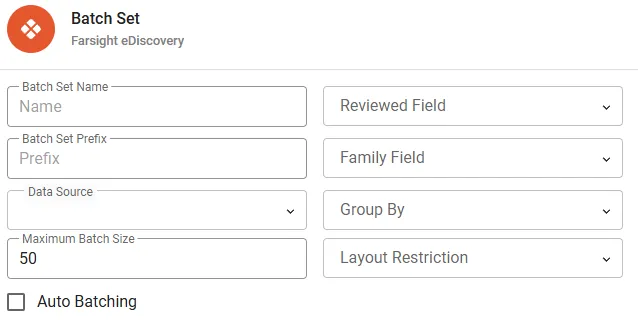
The Layout for Batch Set creation will open.
-
See the table below for details on the requested inputs:
| Input | Description |
|---|---|
| Batch Set Name | Choose a meaningful name for the Batch Set. |
| Batch Set Prefix | Choose a prefix for the Batches. The prefix is typically similar to the name of the Batch Set but can also be named independently. |
| Data Source | Select the Saved Query containing the Documents to be batched out. |
| Maximum Batch Size | Defines the targeted Document count within a single Batch. The actual Document count per batch can exceed this value if the Family Field has been specified. |
| Reviewed Field | Specifying the Reviewed Field will enable the Documents Reviewed column on the Batch Set details page. Using this option will increase transparency on the review progress. Additionally the Users will not be able to check-in a batch as completed until all Documents have been coded. |
| Family Field | If selected the batching process will keep relational groups together. For this reason observed batch size can vary and exceed the defined maximum size. |
| Group By | Control the segregation of Documents by another Field used for grouping. One example use case is the separation of Documents based on language. This segregation takes precedence over the Family Field setting e.g. Documents of a single family might end up in different Batches due to different languages. |
| Layout Restriction | Restrict Users working on these Batches to a specific Layout. This can reduce User errors in scenarios with concurrent access to multiple Layouts. |
| Auto Batching | Enable this checkbox will check the Data Source regularly for any new Documents to be batched out. |
| Minimum Batch Size | Becomes available once Auto Batching is selected and can help to prevent fragmentation into many smaller Batches. There is an additional fail-safe mechanism built-in: If the number of queued documents stays under threshold but on the same count for 48 hours, a new Batch is created anyway. This will help to prevent Documents being omitted from review. |
- Press the button SAVE to complete the creation process.
Manage Batch Set
Section titled “Manage Batch Set”Actions
Section titled “Actions”- Edit to change the name or the properties of the Batch Set.
- Delete to permanently remove the Batch Set.
Details
Section titled “Details”Follow the link on the Name column to see the details.
Status
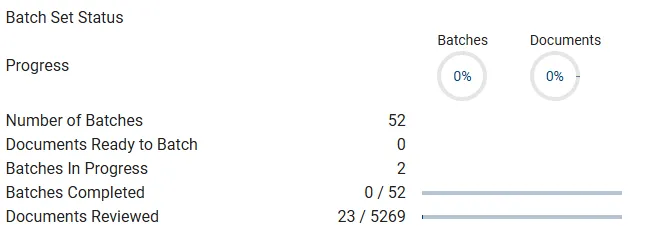
Section titled “Status”The Batch Set Status page gives information about Document volume and review progress.
Console
Section titled “Console”Console section offers the following controls: 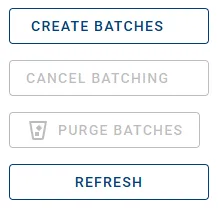
- Create Batches starts the process of creating Batches. The button is unavailable if there is nothing to be batched. The result of the Saved Query in Data Source might be empty or all Documents have already been batched out previously.
- Cancel Batching is only available during an active batching process.
- Purge Batches is only available if Batches have been created earlier on. This will permanently remove all information associated to the Batches e.g. assignments.
- Refresh does refresh the list of Batches.