
Threading Jobs
Create Threading Job
Section titled “Create Threading Job”-
On Threading Jobs tab click the button NEW THREADING JOB in the top right corner.

-
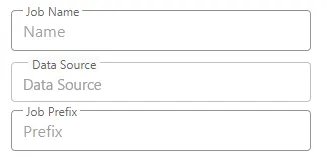
Define a name in Job Name input box.
-
Select your previously created Saved Query as Data Source.
-
Define a Job Prefix for this job.
-
Press the button SAVE in top right corner to complete creation.
Manage Threading Job
Section titled “Manage Threading Job”- Name
- Prefix
- Data Source
- Last Started
- Last Finished
Status
Section titled “Status”Status section will display information about completed Threading Jobs.
- Items Analyzed is the number of top level messages in the Data Source which properly validated and qualified for analysis. The number can be lower than the actual count in the referenced Saved Query.
- Items Inclusive is the number of analyzed messages found to be inclusive. This figure does include the duplicate spares so the actual number of unique inclusive emails might be lower.
- Number of Threads is the number of identified conversations along the processed email set.
Actions
Section titled “Actions”- Run to start the Threading Job.
- Cancel is only available during an active threading run.
- Edit the Threading Job name or properties.
- Delete to permanently remove the Threading Job and all associated Fields.