
Getting Started
There are two methods for getting access to Farsight:
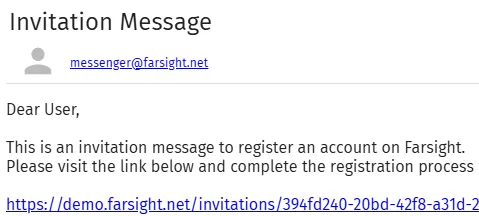
- An invitation for self registration was sent to your email address. See the next section Self Registration for additional guidance.
- An administrator has already created an User account for you and provided the login credentials. In this case you can skip the next section and continue with the Login section.
Self Registration
Section titled “Self Registration”The invitation message does come with a registration link.
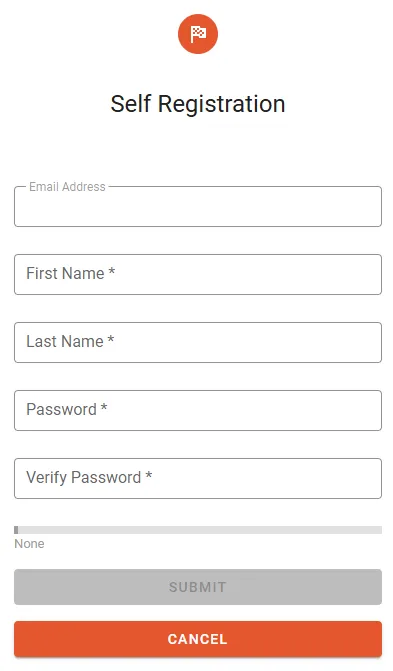
Click the link to open the Self Registration dialog shown below. Enter your name and define a password to unlock the SUBMIT button.
Login to Farsight
Section titled “Login to Farsight”Farsight login credentials are bound to the User’s email address and typically require a password. Nevertheless accounts can be registered with other authentication providers. Enter your email address, click the button CONTINUE and Farsight will determine the applicable authentication route. The instance may optionally show additional quick access buttons linked to third party authentication providers. 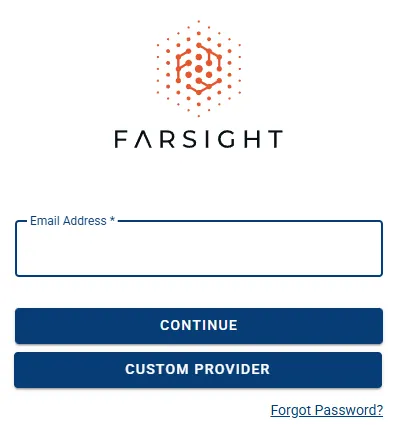
If your account is registered with password authentication you can enter it within the next dialog shown below. For other authentication providers you will be redirected to the corresponding login page. 
If you forgot the password you can request a new password by using the Forgot Password? link.
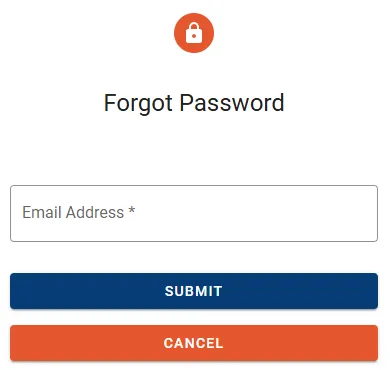
- Provide the email address your account is registered to.
- Press the SUBMIT button to receive a recovery email.
Manage Account Settings
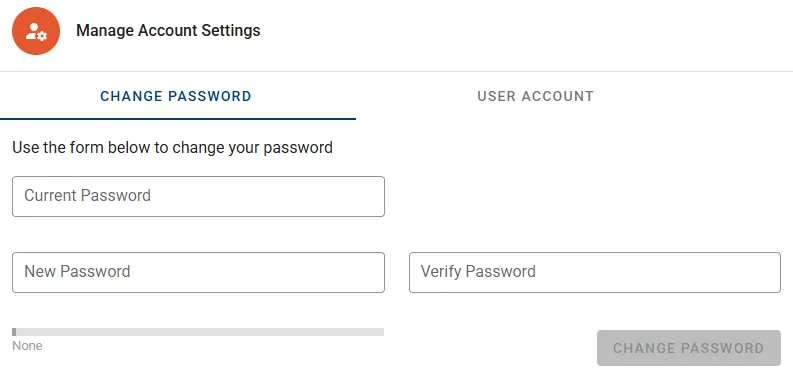
Section titled “Manage Account Settings”The password can be updated at any time. Click the area showing your user name in the top right corner and select Settings to open the Manage Account Settings dialog. 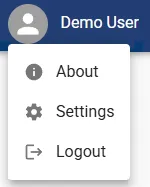
Web Browser
Section titled “Web Browser”For best user experience a Chromium based browser is recommended (Google Chrome, Microsoft Edge and many others).
Locale Settings
Section titled “Locale Settings”The formatting of date and time in Farsight user interface is linked to your browser settings. Change the preferred language in your browser settings if dates or time do not look as expected. For most browsers the setting can be changed by following the instructions below.
- Go to the Settings dialog of your browser.
- Select the category Language.
- In section Preferred Languages make sure the preferred language is at the top.
- If your language is missing click the Add language button.
Next steps
Section titled “Next steps”Depending on your role and profile choose a path below to continue.
Go to Administrator Essentials if your primary tasks are:
- Access management
- Handling data to be processed, imported or exported
- High level Workspace management as creation or archiving
Go to User Essentials if your primary tasks are:
- Searching the Document population
- Reviewing and coding Documents