
Documents
Create Document
Section titled “Create Document”-
On the tab Documents hover the button NEW DOCUMENT in the top right corner.

-
An additional box showing the available Layouts will appear.
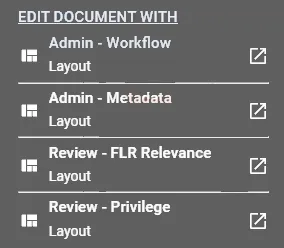 Click the button NEW DOCUMENT to continue with the default Layout.
- Chose the preferred Layout from the box to continue.
-
Populate the Layout with information and press the button CREATE to complete the process.
Manage Document
Section titled “Manage Document”Actions
Section titled “Actions”- Hover the Edit button to show the available Layouts in a first step.
- Make a selection to open the Edit dialog with the designated Layout.
Delete
Section titled “Delete”Permanently remove the record.
Conversion
Section titled “Conversion”Open the Mass Document Conversion dialog. 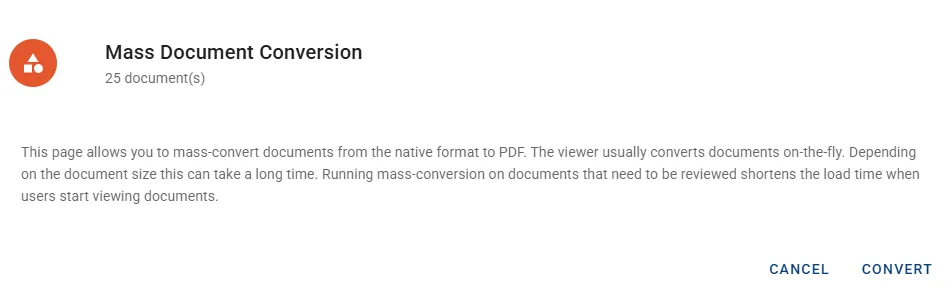
- Press the button CONVERT to initiate the background conversion for the Documents.
Export
Section titled “Export”Open the Mass Document Export dialog to select metadata and files (natives, PDFs) to be exported into a ZIP file. All the Fields displayed as columns are automatically added to the list. 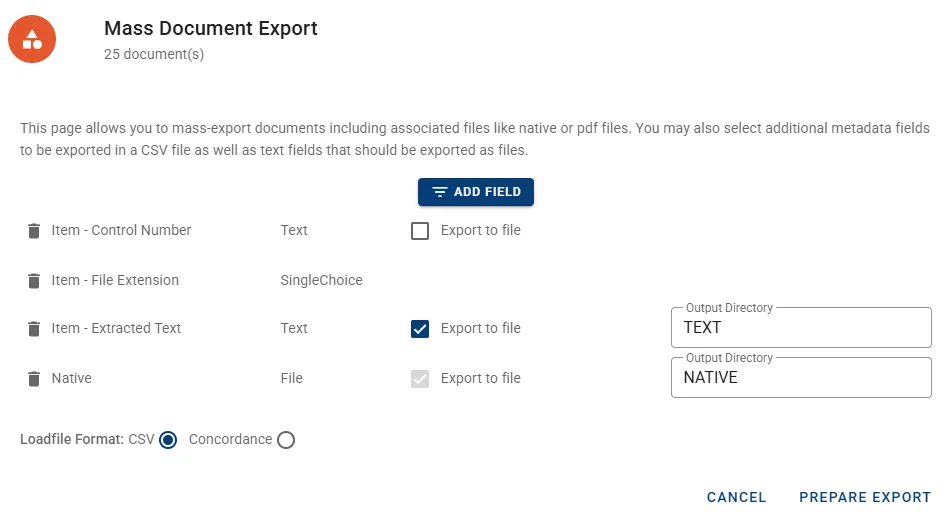
- Configure the designated export options. The list below explores the different elements shown in the example screenshot above.
 | Add another Field to the end of the export selection. |
 | Remove the Field from the export selection. |
 | Fields of type Text can optionally be exported as independent files. The corresponding column in the delimited file will contain the relative path to the file. |
 | The name for each file Output Directory can be customized. |
 | The Export to file option is locked in for Fields of type File e.g. Native or Pdf. The corresponding column in the delimited file will contain the relative path to the file. |
 | Choose the format of the delimited output file. |
- Click the button PREPARE EXPORT to submit the changes.
- Click the button SAVE EXPORT to retrieve the export as ZIP file.
Mass Actions
Section titled “Mass Actions”Document records support Mass Actions which is indicated by the column header:
-
By default the Action will take place for all records as indicated by the box “All”.
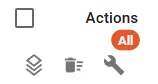
-
Once individual items are selected the box will indicate how many records will be affected by the action.
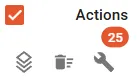
Details
Section titled “Details”The details of a Document record are presented by the Document Viewer. The Viewer can be accessed by clicking the link on the first column in the result list. Visit page User Interface Overview for more information.