
Batches
Batches are an ancillary Object Definition and are fully managed by Batch Sets.
Manage Batches
Section titled “Manage Batches”Actions
Section titled “Actions”Checkout/Assign
Section titled “Checkout/Assign”-
Click Edit on an unassigned Batch to open the Edit Batch dialog.

- To start working on the Batch click the button ME.
- Select another User in the Assigned To drop-down menu to assign the Batch to someone else.
-
Click the button CHECK OUT to complete.
-
The Batch will now show the User name in the Assigned To Field and In Progress in Status Field. Assigned Batches show different options in edit mode:
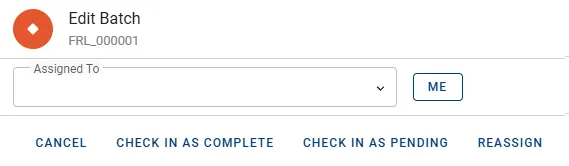
Check in as complete
Section titled “Check in as complete”- Click Edit on the Batch to open the Edit Batch dialog.
- Click the button CHECK IN AS COMPLETE and the status will change to Completed.
Check in as pending
Section titled “Check in as pending”- Click Edit on the Batch to open the Edit Batch dialog.
- Click the button CHECK IN AS PENDING and the status will be cleared.
Reassign
Section titled “Reassign”-
Click Edit on the Batch to be reassigned to open the Edit Batch dialog.
- To take over the Batch click button ME.
- Select another User in the Assigned To drop-down menu to assign the Batch to someone else.
-
Click the button REASSIGN to complete.