
Extensions
Extensions add new features or functionality to the Farsight Platform. This tab shows an overview of all Extensions currently available at instance level.
Install or Upgrade Extension
Section titled “Install or Upgrade Extension”The procedure below applies to installation of new Extensions as well as upgrading existing ones.
- Click the button INSTALL EXTENSION to open the Install Extension dialog.
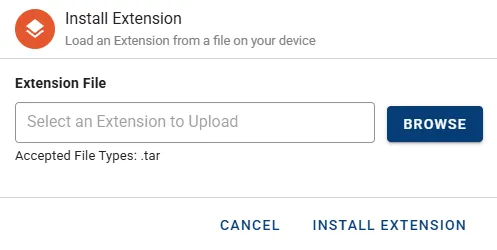
- Click the button BROWSE to select a Farsight Extension file from your computer.
- Complete the process by clicking the button INSTALL EXTENSION.
Manage Extension
Section titled “Manage Extension”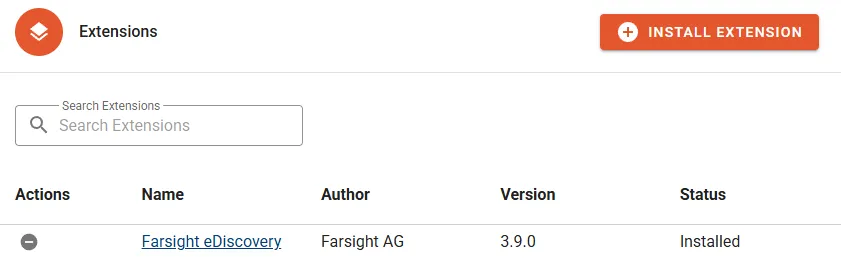
The following properties will be displayed in the Extension list:
- Name
- Author of the extension.
- Version of the extension.
- Status
Actions
Section titled “Actions”Uninstall Extension will remove the Extension from the environment.
Details
Section titled “Details”Follow the link on the Name column to see the details.
Active Workspaces
Section titled “Active Workspaces”Shows a list of Workspaces which have the extension installed.
- Workspace Name
- Author of the extension.
- Version of the extension.
- Status is “Installed” as the list is filtered for Workspaces with an active install.