
Archives
Archives are an easy way to snapshot, export and import entire Workspaces. The Archives can be used to copy Workspaces between different Farsight instances.
Create Archive
Section titled “Create Archive”Archive creation is initiated from the Workspaces tab.
- Go to the tab Workspaces and click the Action Archive Workspace in front of the Workspace.
- Confirm the dialog with the button ARCHIVE WORKSPACE to start the archiving process.

- Upon confirmation the context is switched immediately to the Archives tab where you can see the defined job in status Archiving.

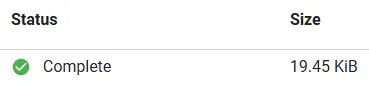
- Upon completion the status will switch to Complete and show the size of the Archive.
Import Archive
Section titled “Import Archive”-
On the tab Archives press the button IMPORT ARCHIVE in the top right corner.

-
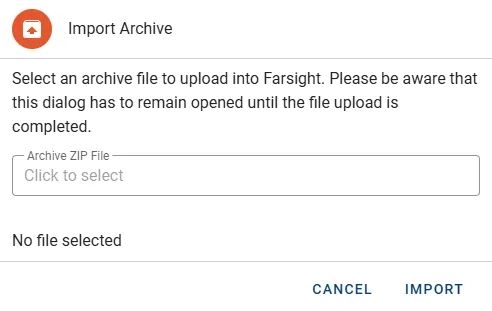
Click into Archive ZIP File input to select an Archive file to be uploaded.
-
Once the file is uploaded press the button IMPORT to complete the process.
-
The Archive of the imported Workspace is now available in the list.
Manage Archive
Section titled “Manage Archive”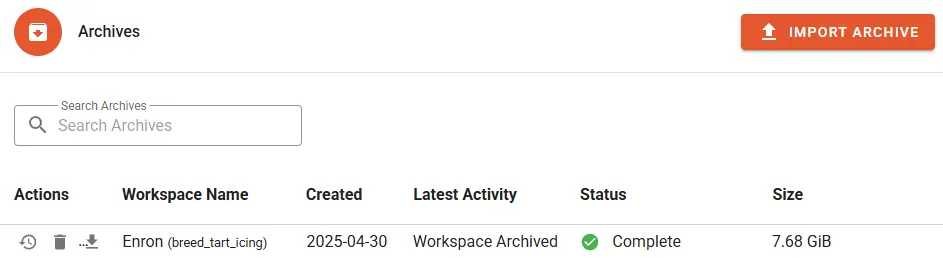
List details
Section titled “List details”The following properties will be displayed in the Archives list:
- Workspace Name shows both Workspace name and identifier.
- Created is the timestamp when the Archive job was started.
- Latest Activity describes the last activity with corresponding timestamp.
- Status displays the current state of the Archive.
- Size does show the size of the completed Archive in KB.
Actions
Section titled “Actions”- Restore will pull the Workspace form Archive into the instance. The process can only proceed if the Workspace is not present in the environment.
- Delete will permanently remove the Archive.
- Download will download the Archive as TAR file.