
Extractor Application
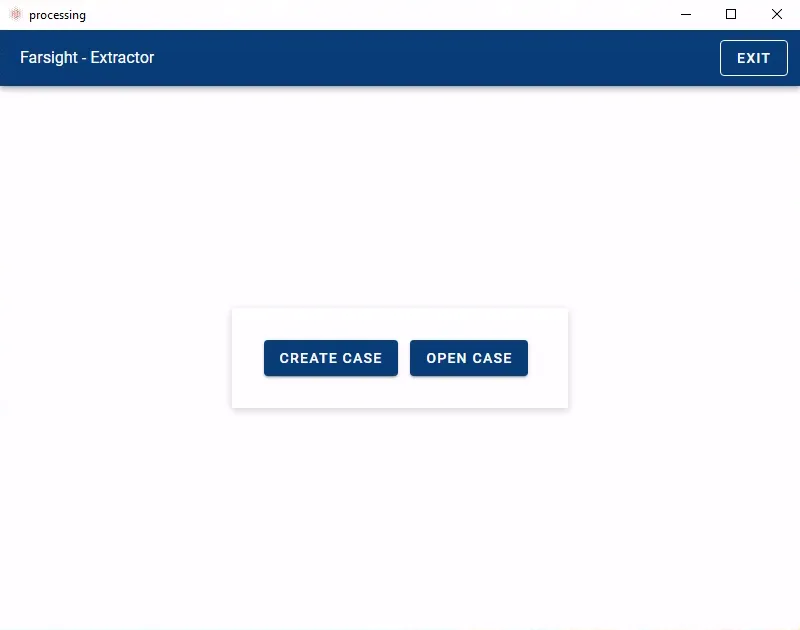
The startup window shows two buttons:
- Create Case to start with a new matter.
- Open Case to process additional data into an existing matter.
Create a new case
Section titled “Create a new case”- Click button CREATE CASE to continue.
- Select an empty destination directory where to store case data.
Process a new batch
Section titled “Process a new batch”-
Once the source data has been prepared click on Process Batch and select the source directory.
-
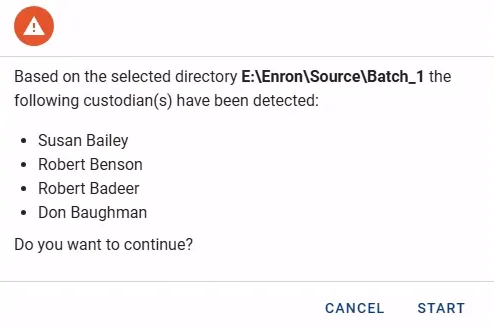
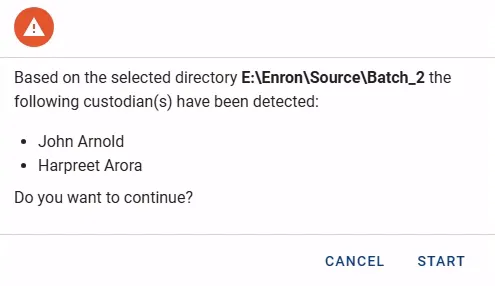
A popup window appears outlining all subdirectory names (which will be the custodian names).
-
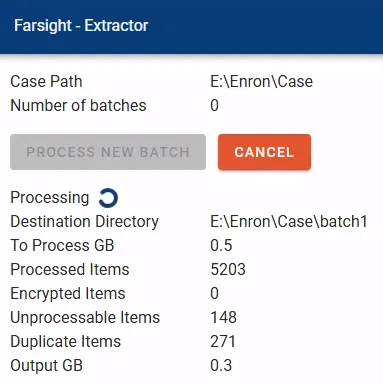
Click the button START to launch the extraction process. The left side of the Extractor window will inform about status. On the right side any warnings or errors will be shown.
-
The button CANCEL remains available during processing.
-
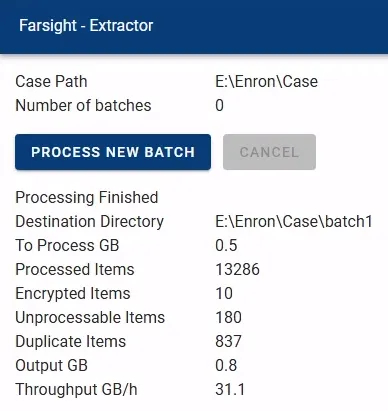
Once completed the button PROCESS NEW BATCH becomes available and final status messages are shown.
Open an existing case
Section titled “Open an existing case”-
Click the button OPEN CASE to continue.
-
Select an existing case directory.
-
Once loaded the number of previously processed batches is shown.

Process a subsequent batch
Section titled “Process a subsequent batch”-
Press the button PROCESS NEW BATCH.
-
Select the folder containing the next batch.
-
A summary for the folder is displayed.
-
Click the button START to launch the process.
-
The button CANCEL remains available while the process is running.
-
Once completed the button PROCESS NEW BATCH becomes available and final status messages are shown.