
Search Indices
Search Indices allow searching rapidly through large Document sets. They offer basic features like boolean operators or wildcards as well as advanced capabilities like proximity searches or regular expressions.
Create Search Index
Section titled “Create Search Index”Prerequisites
Section titled “Prerequisites”First create a Saved Query to define the Documents in scope and the Fields to be extracted.
- Details & Fields Add the Fields to be indexed to the Selected Fields section.
- Filtering Optionally define conditions the Documents need to fulfill to become part of the Search Index.
Create Search Index
Section titled “Create Search Index”- On the tab Search Indices click the button NEW SEARCH INDEX in the top right corner. Please note that the button is grayed out unless a Saved Query was created.

- The Create Search Index dialog is displayed:
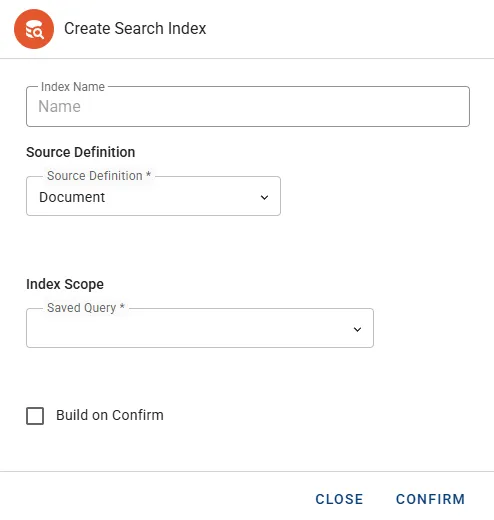
- Index Name to be filled in with a name for this Search Index.
- Source Definition is the object type to be indexed (default is Document).
- Index Scope is to be populated with the previously prepared Saved Query.
- Build on Confirm checked will automatically start building the index. Once completed visibility and access will be limited to administrators only.
- Press the button CONFIRM to complete the process.
Manage Search Index
Section titled “Manage Search Index”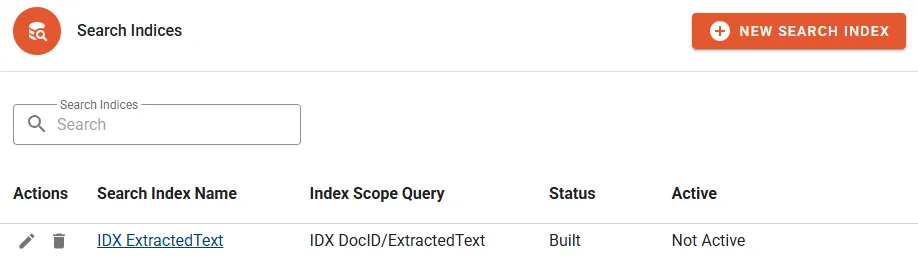
The following properties will be displayed in the Search Indices list:
- Search Index Name shows a link to access the details.
- Index Scope Query displays the underlying Saved Query.
- Status can be either New or Built.
- Active indicates if the Search Index is exposed to regular Users (Active) or only visible to administrators (Not Active).
Actions
Section titled “Actions”- Edit to change the name of the Search Index or alter any properties.
- Delete will permanently remove the Search Index.
Details
Section titled “Details”Check Status
Section titled “Check Status”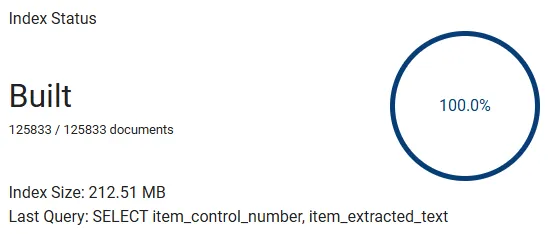
Status section shows details about build state, Document count, index size and linked query.
Console
Section titled “Console”Console section offers the following controls: 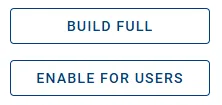
- Build Full is for the initial build or re-running the build process. Building an index is typically required if the Document scope has changed (e.g. new Documents have been loaded) or the selected Field configuration of the underlying Saved Query has changed.
- Enable/Disable For Users toggles visibility for Users. Administrators can see all Search Indices anyway but some might serve special purposes and are to be hidden from regular Users.
- Cancel Build is only available during an active build process.
How to perform Index Search
Section titled “How to perform Index Search”Ad-hoc searching
Section titled “Ad-hoc searching”Use the input form in the middle of the tab title bar to perform ad-hoc searches:

- Use the drop-down menu Search Index to select the preferred index.
- Input box Search Term is to be populated with the designated term.
- Hit the RETURN key to submit the search.
- The circled X is to reset the Search Term input box.
Conditional searching for View or Saved Query
Section titled “Conditional searching for View or Saved Query”-
Select Edit on your designated View or Saved Query.
-
Switch to the section INDEX SEARCH.

-
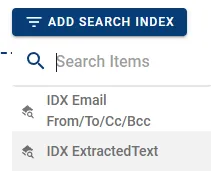
Press the button ADD SEARCH INDEX and select the preferred Search Index.
-
Enter the term to the Search Term input box.

-
Press the button SAVE to submit and see updated results for the query.