
OpenID Connect Providers
Registering Microsoft as an OpenID Connect Provider
Section titled “Registering Microsoft as an OpenID Connect Provider”A step-by-step guide to configuring Microsoft Entra ID (Azure AD) app registration for single sign-on in Farsight.
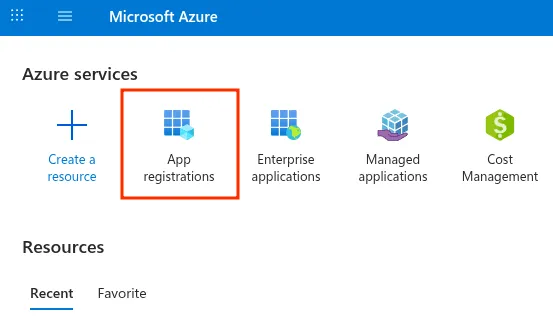
- In the Microsoft Azure Portal, navigate to App registrations.
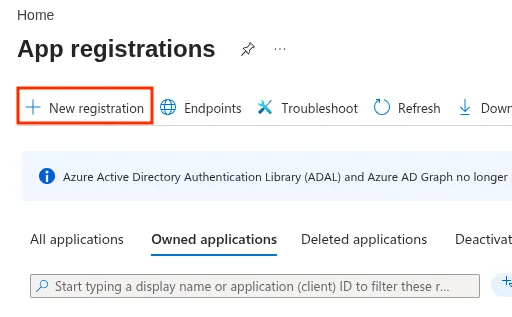
- Click New registration to begin creating the application.
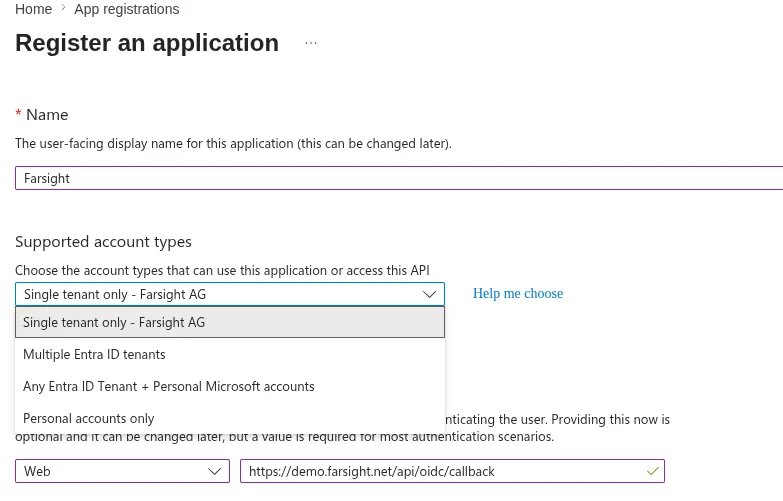
- Provide a Name for the application and enter the Redirect URI that Farsight will use to receive the authentication response. Get the right Redirect Uri value for your instance by opening the Create Provider dialog. Supported account types:
-
Single tenant only – if you only want users from your company to use that login method
-
Multiple Entra ID tenants – if other Microsoft 365 companies should be able to log in using this method too
-
Any Entra ID – anyone with a Microsoft 365 account
-
- Once the details are entered, click Register at the bottom left.
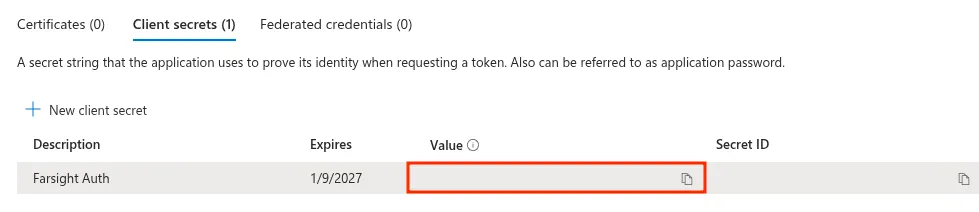
- Go to Certificates & secrets and create a New client secret, then enter the details.
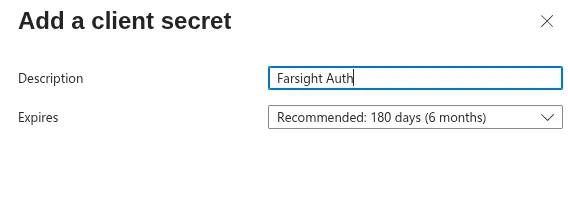
- Copy the Value of the generated secret — this will be needed to register the Auth Provider within Farsight.
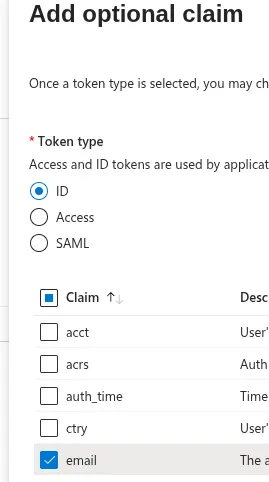
- Go to Token configuration and select Add optional claim. Choose ID as the token type and add the email attribute.
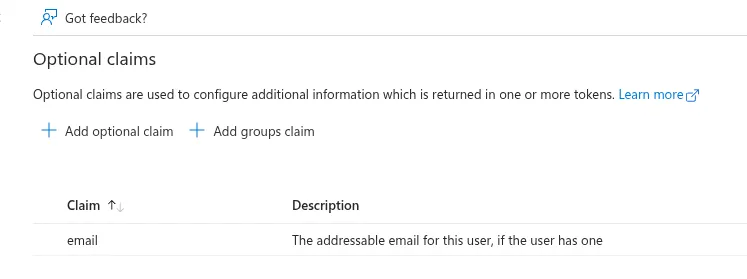
- Click Add, then enable Turn on the Microsoft Graph email, profile permission and click Add again.
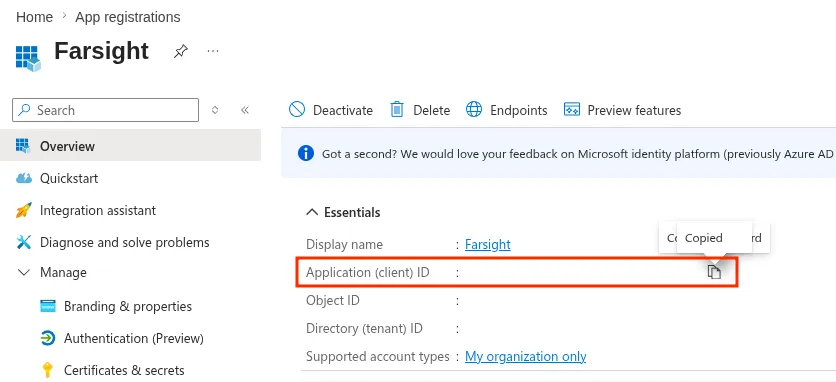
- Go to Overview and retrieve the Application ID and, optionally, the Directory (tenant) ID.
Configure the Auth Provider in Farsight
Section titled “Configure the Auth Provider in Farsight”Within Farsight, create a new Auth Provider and enter the following information:
| Field | Value |
|---|---|
| Client Id | The Application ID from your Azure application |
| Client Secret | The secret value copied from Certificates & secrets |
| Issuer URI | Single tenant: https://login.microsoftonline.com/d5ee1c08-df48-41ab-9948-80530002a9a8 Multiple tenants / global: https://login.microsoftonline.com/common/v2.0 |
| Redirect URI | Leave unchanged |