
Processing Application
Source Folder Preparation
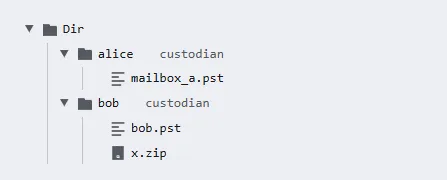
Section titled “Source Folder Preparation”Structure the source data folder before continuing. The input directory should contain one sub-directory per custodian and be labeled accordingly. The first layer of directories can be used as data sources name and all descendants will be labeled accordingly.
-
All the items extracted from the
alicedirectory will be labeled with the custodianalice. -
All the items extracted from the
bobdirectory, i.e.bob.pstandx.zipwill be labeled with the custodianbob.
Create a new case
Section titled “Create a new case”The initial startup window shows the “Select or Create Case Directory” dialog.
- Select an empty directory to start with a new case.
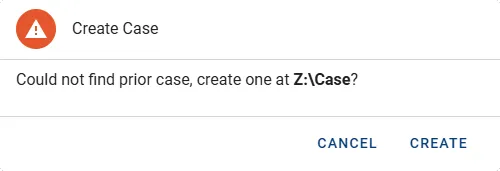
If the dialog initial dialog is cancelled it can be re-opened by pressing the OPEN / CREATE CASE button. 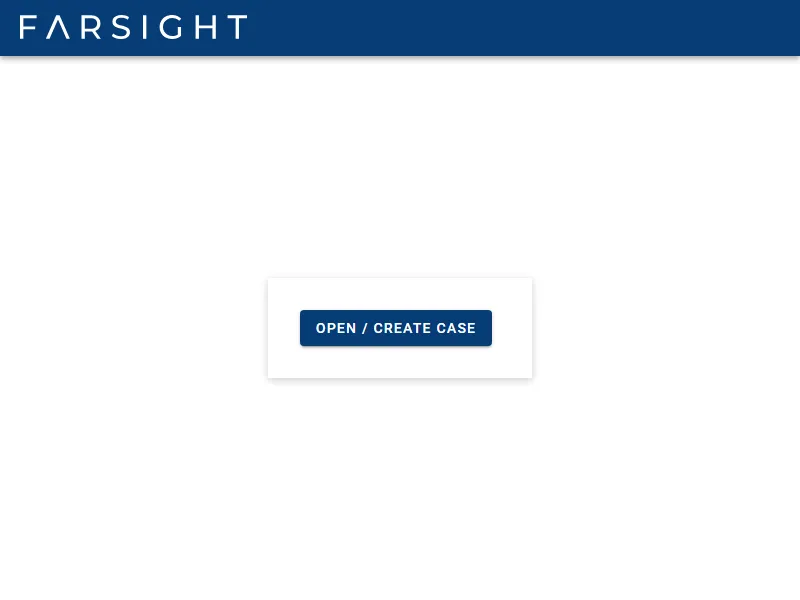
Process a new batch
Section titled “Process a new batch”- Once the source data has been prepared click on ADD SOURCES and select the source directory.
- Browse, select and confirm the source folder(s). Selecting multiple folders will create separate sources.
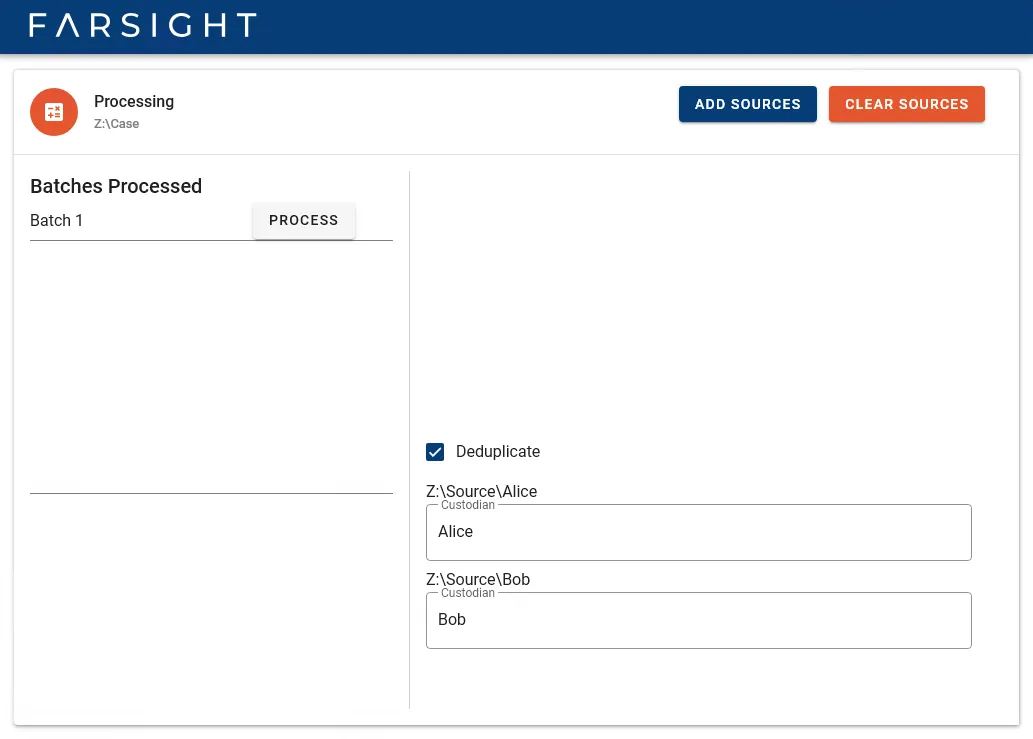
- The name of the source folder will become the value of the custodian metadata Field. The input boxes are open for manual changes.
- Click the button PROCESS to launch the extraction process. The left side of the window will inform about status. On the right side any warnings or errors will be shown.
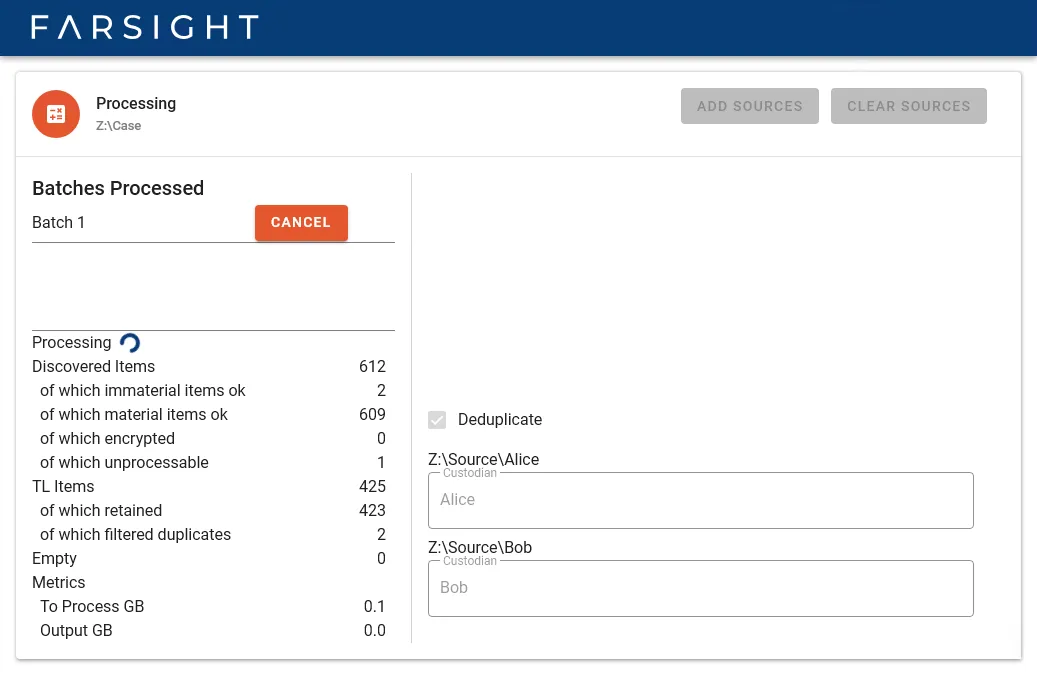
- The button CANCEL remains available during processing.
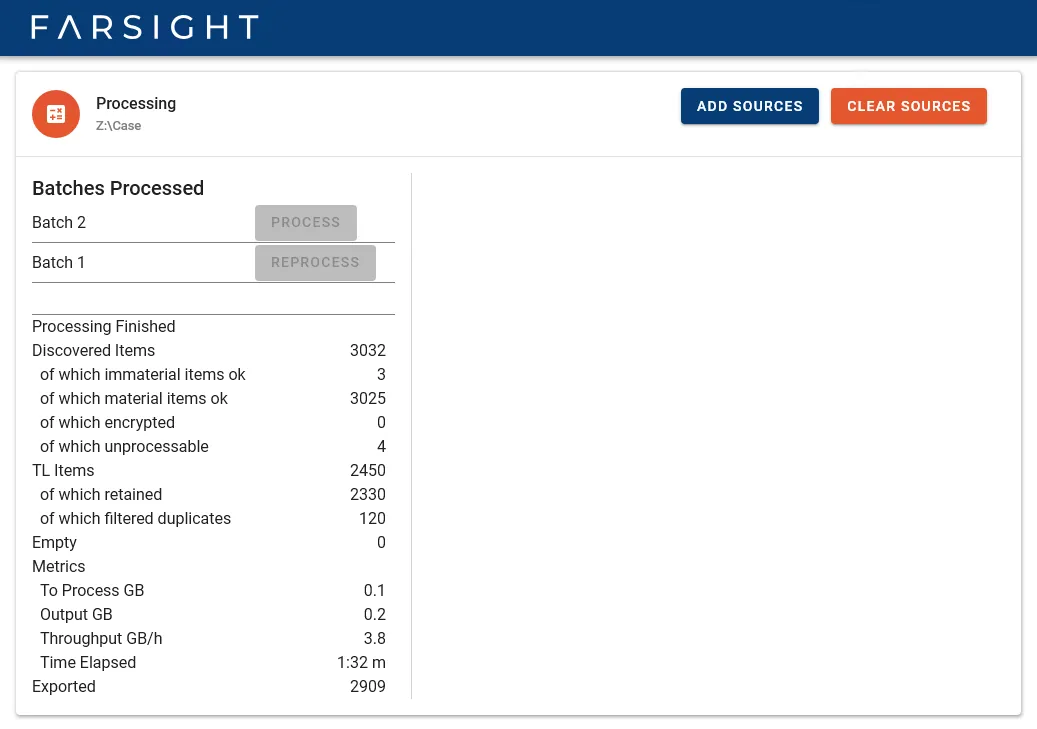
- Once completed the button ADD SOURCES becomes available again and final status messages are shown.
Open an existing case
Section titled “Open an existing case”- Upon startup select an existing case directory.
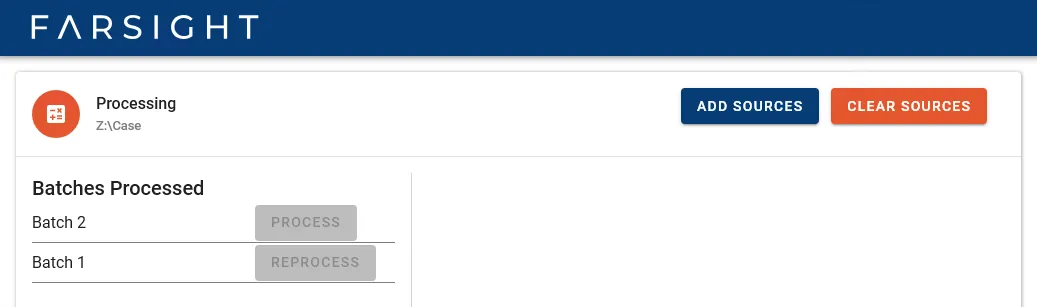
- Once loaded a list of previously processed batches is shown.
Process a subsequent batch
Section titled “Process a subsequent batch”- Press the button ADD SOURCES and select the folder(s) containing the additional data.
- Click the button PROCESS to launch the process.
Reprocess
Section titled “Reprocess”The reprocess function allows to rollback and run the last batch from scratch. The source folder can be changed, the data of the previous run is fully discarded anyway.
- Press the button ADD SOURCES and select the folder(s) containing the replacement data.
- Click the button REPROCESS to launch the process.